Lucity Quick Reference
Contents
If you choose either “City Tree Blocking…” or “City Tree Limbs Broken” it goes into the “storm requests” queue.
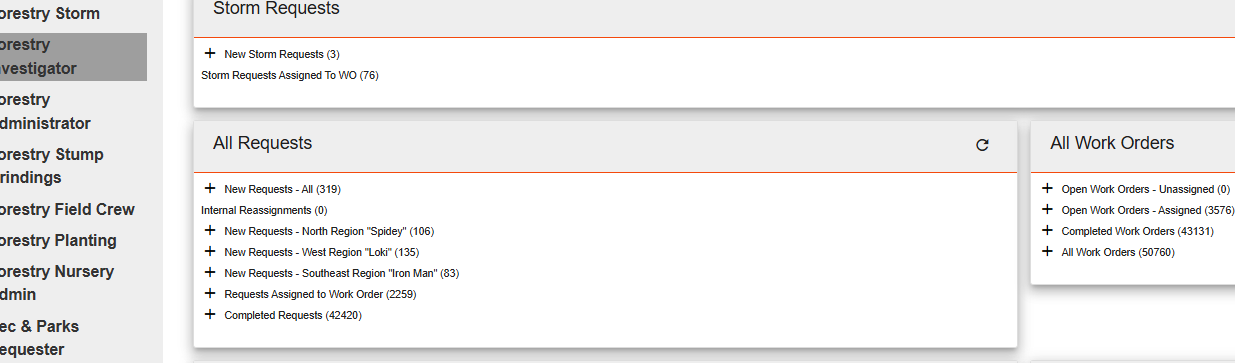 New Requests
 New Requests
New Storm Requests: displays only the requests with CITY TREE BLOCKING STREET/ALLEY/SIDEWALK or CITY TREE LIMBS BROKEN/HANGING
 Clicking on the + symbol will show which areas have tree emergencies and how many there are in each area.
Clicking on the words New Storm Requests will open a new tab displaying the list.

Clicking on the + symbol next to New Request will show a breakdown of new request that has an arborist assigned to it. The Regional Arborists don’t always assign a request to themselves if it’s in their own region. If it’s an emergency, or they are checking on something in another area they may assign it to themselves so everyone else knows that it’s getting taken care of.
The number next to the region names shows how many open requests are in each region.
To enter a new request:

Click the green note/memo

The required fields are in beige, but always include the Planning Area/Referral.

The Category should always be Tree.

The appropriate Request Type is important.
Street Tree Planting routes the request to the Nursery.
The rest of the types will keep the request in the Tree Care queue.
CITY TREE BLOCKING STREET/ALLEY/SIDEWALK and CITY TREE LIMBS BROKEN/HANGING will also show the request in the New Storm Requests queue.

Use the regional map to find the correct area so it will get routed to the appropriate Regional Arborist (see instructions below for using the map search). This is what Lucity uses to sort the requests, not the address.
 Use the blue icons to save the request after all info is in. The icon with the green arrow saves the request and closes the tab. The icon without the green arrow saves the request but leaves the tab open. This is when you can add photos if there are any (you must save the request first to add photos).
 The paper with the paper clip will be lit up

You can upload or drag and drop files here.
 Comments
 Comments
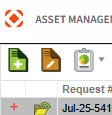
You can add publicly available comments to the request by clicking on the little red + symbol next to the folder icon.


Then clicking the green icon that drops down (not the one at the top of the list).
Add the comment, then be sure to click “Publicly Available in 311” so the resident can see it in their online portal. Click one of the blue icons to save the comment.
Existing Work Orders

Use the list from the Forestry Investigator tab, not Forestry Administrator.
The easiest way to find a specific work order is to filter by Address or Street Name.


If you aren’t sure if a work order exists, can’t find it by searching either address or street name, you can search the Tree Inventory Map.
Map Search

Click on the globe symbol in the top right corner. This will open a new tab with a map of the city.

 Click on the binocular’s icon (top right) to open a search field.

Clicking on one of the search results will focus the map on that address.

Click one of the tree icons to bring up an info box about that tree.

This small icon on the bottom will show more info about that specific tree.
 Clicking on Work Orders will open a tab at the bottom of the screen showing any work orders (open or closed) associated with that tree.
This is helpful because sometimes the address associated with that asset is different than the info than we are given.
Work Order Info
Working from the All Work Orders tab, or from the popup tab in the map will function the same from here:
Clicking on the red + symbol will drop down another menu:

The Tasks tab will show the date and time for any work that has been done, including when parking was posted, work was attempted but could not be completed, etc.
Clicking that red + symbol will display the list of people who were on the crew that day when the work was completed.

Other useful tabs:
Comments: rarely used, as the Arborist will leave most comments to the crew in the body of the work order.
Work Order Tracking: shows any changes made to the work order (Priority, crew assignment, etc.)
Work Requests: shows the original request that prompted the inspection (if there is one).

